Getting started
Installing
Download the latest release from GitHub and run it. The tool updates itself: a banner at the top of the window says when a new version is available, downloads it on click and asks for a restart.
First run
On the first start the tool asks for a main projects folder. Pick a parent folder such as C:\grzyClothTool Projects, not a folder of one project. Every project gets its own subfolder inside it. The folder can be changed later in Settings.
The same screen asks, optionally, for the GTA V folder used by the 3D preview, and can install a preview asset pack exported from another computer for machines without the game. Both can be set later in Settings, and without either the preview runs in a reduced, drawables-only mode.
The home screen
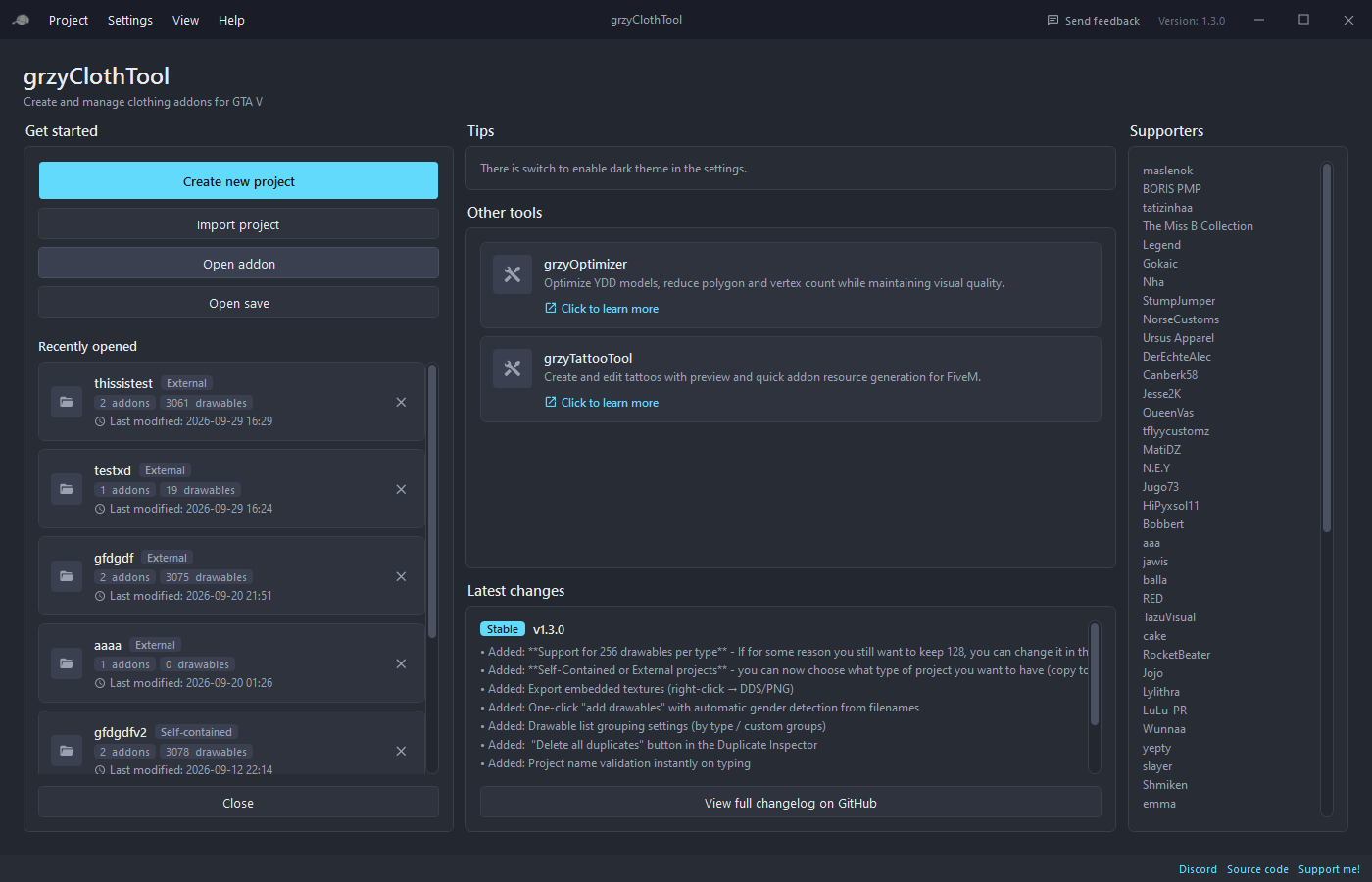
- Create new project asks for a name and a project type.
- Import project opens a
.gctprojectfile exported from another computer. - Open addon loads an existing pack from its
.metafiles. - Open save loads a raw
.jsonsave. - Recently opened lists your projects with their addon and drawable counts.
- The right side shows the latest changes and the current Patreon supporters.
Project types
| Self-contained | External | |
|---|---|---|
| Files | Copied into the project folder | Stay where they are |
| Moving or sharing | Easy, the folder has everything | Moving or deleting the original files breaks the project |
| Disk space | Uses more | Uses less |
Self-contained is the safe default. External is for large collections that already live in an organised folder structure.
Opening an existing pack
Project > Open Addon has two ways in:
- From .meta files takes one or more shop ped apparel
.metafiles. The drawables next to them are loaded, a project name is suggested from the file name, and the project is saved. - From resource folder takes a built FiveM resource, the folder with
fxmanifest.luaandstream, or any pack folder. The.metafiles inside it are found automatically, subfolders included, so packs built by other tools open without hunting for the files.
The Open addon button on the home screen does the same, with the folder option behind its arrow. Project > Add Addon offers both ways too and adds to the current project instead of replacing it.
Saving, autosave and backups
- Ctrl+S or Project > Save saves the project.
- The project autosaves every minute while there are unsaved changes. The status bar shows the countdown.
- The last five saves are kept in
save-backupsinside the project folder. If a save cannot be loaded, the tool offers the newest working backup. - Closing the window, going back to the home screen or installing an update asks about unsaved changes first.
Sharing a project
Project > Export Project writes a single .gctproject archive with the save, every asset and the generated thumbnails. Import project on the home screen restores it. An external project asks for a folder to extract the files into.
Missing files
If files of an external project have moved, a red banner appears at the top of the project with Fix missing files.... The dialog can search a folder and its subfolders for the files by name, relink them, or remove the affected drawables. Building is blocked while files are missing.